![[December 2025] NVIDIA Isaac Sim Environment Setup Record (Isaac Sim 5.1.0 + ROS2 w/ Ubuntu 24.04)](/_next/image?url=%2Fimg%2Fblog%2F5OPgIg1D_h0-devdesk.jpg&w=3840&q=75)
Ubuntu NVIDIA Isaac Sim Development Environment Setup Guide (December 2025 Edition)
1. Introduction
After setting up Isaac Sim on Windows 11 Pro, I encountered issues with Docker-based Ubuntu/ROS 2 environment integration. Isaac Sim consistently crashed when trying to load the ROS 2 Bridge Python module rclpy, and I couldn't resolve this problem.
Eventually, I decided to perform a clean dual-boot installation of Ubuntu and configure Isaac Sim and ROS 2 to coexist natively. Below is a record of that procedure.
2. System Overview
- OS: Ubuntu 24.04
- Main Software: NVIDIA Isaac Sim 5.1.0, ROS2 Jazzy
- Purpose: Robot arm simulation, PoC development for sales support
3. Environment Setup Procedure
For basic setup, I referred to https://docs.isaacsim.omniverse.nvidia.com/5.1.0/installation/install_python.html.
3.1. Initial OS Setup
For creating Ubuntu dual-boot environments, numerous detailed references exist, so please refer to those.
During installation, when the Install third-party software for graphics and Wi-Fi hardware option appears, be sure to check it and install NVIDIA proprietary drivers.
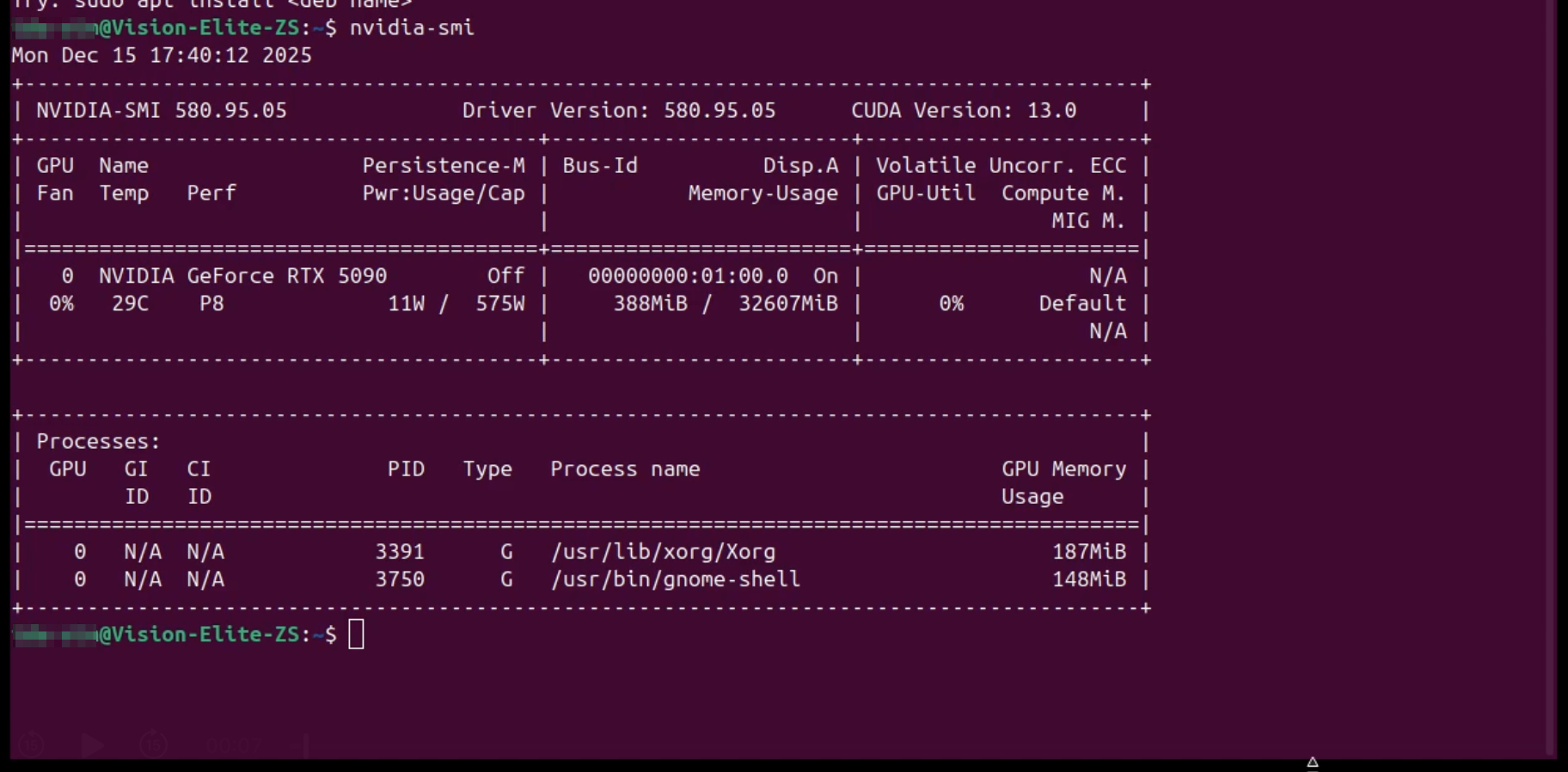
After installation completion, verify NVIDIA driver and CUDA versions with the following command.
$ nvidia-smi
This is due to conflicts between the new driver (libnvidia-gl-580) provided by NVIDIA package repositories and existing compatibility packages (libnvidia-egl-gbm1). Unable to resolve this issue, I eventually had to perform a clean OS reinstallation. Please be careful when making X11-related configuration changes.
3.2. Miniconda Installation and Python Environment Setup
Directly modifying Ubuntu's default Python risks breaking the OS system itself. By using Conda to create 'virtual environments', if configuration fails, you can simply delete that environment and start over, allowing for safe development.
$ mkdir ~/dev/
$ cd ~/dev/
$ sudo apt update
$ sudo apt upgrade
$ wget https://repo.anaconda.com/miniconda/Miniconda3-latest-Linux-x86_64.sh
$ bash Miniconda3-latest-Linux-x86_64.sh
$ source ~/.bashrc
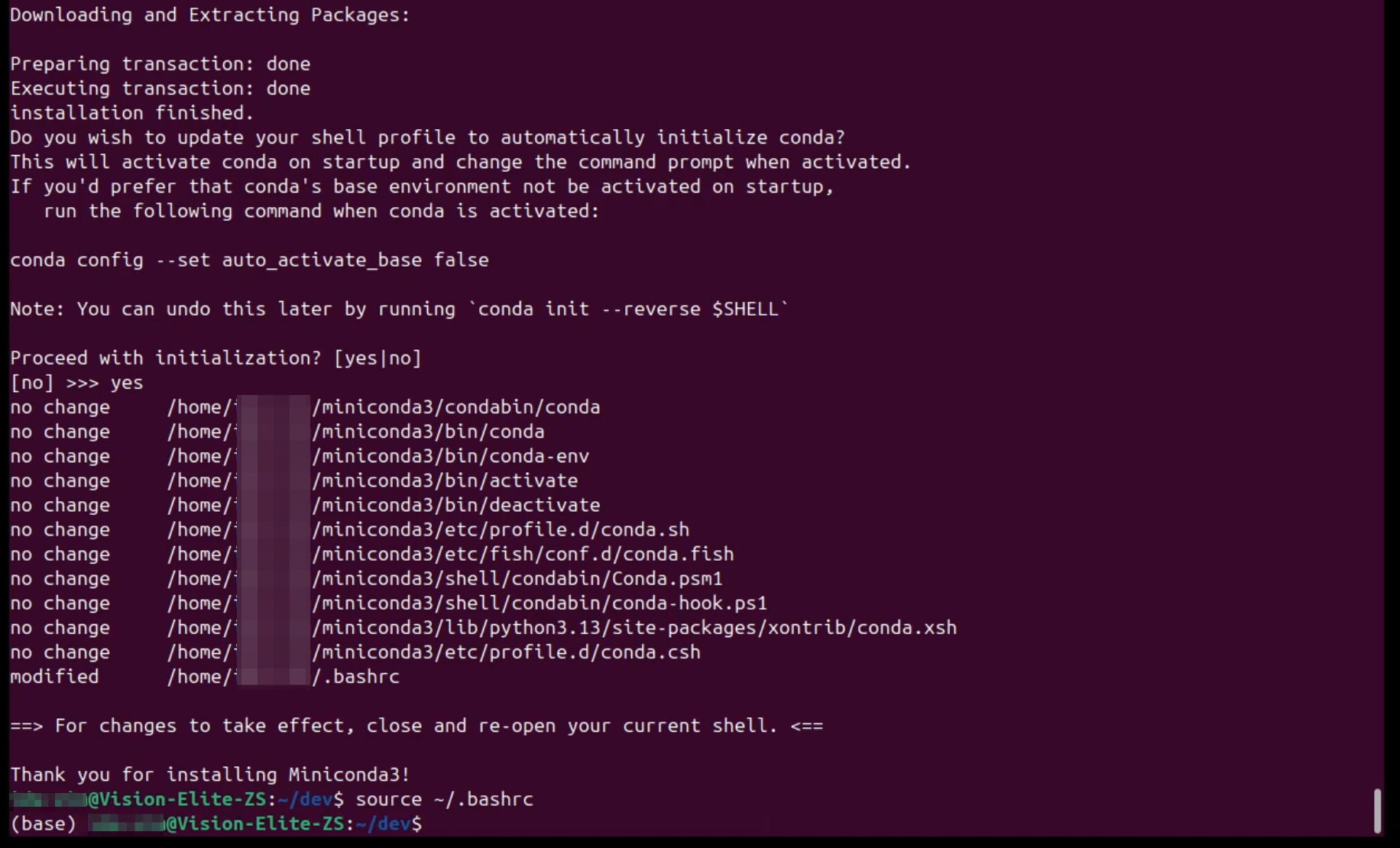
This enables the conda command (conda environments are displayed at the beginning of the prompt, like (base)). Next, since Isaac Sim 5.1.0 requires Python version 3.11, create a Python environment for Isaac Sim.
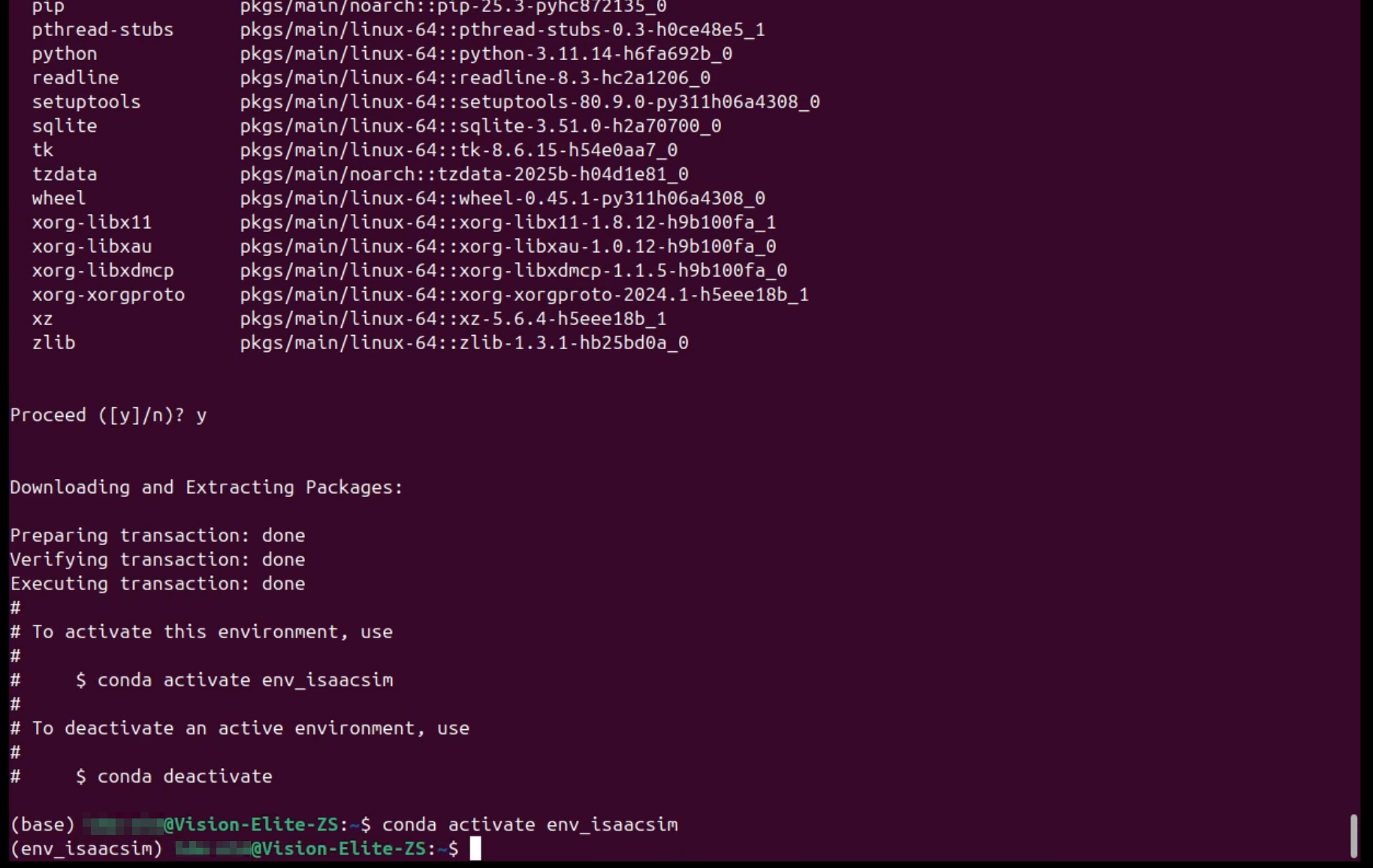
(base) $ conda create -n env_isaacsim python=3.11
(base) $ conda activate env_isaacsim
(env_isaacsim) $ pip install --upgrade pip
3.3. Isaac Sim Installation
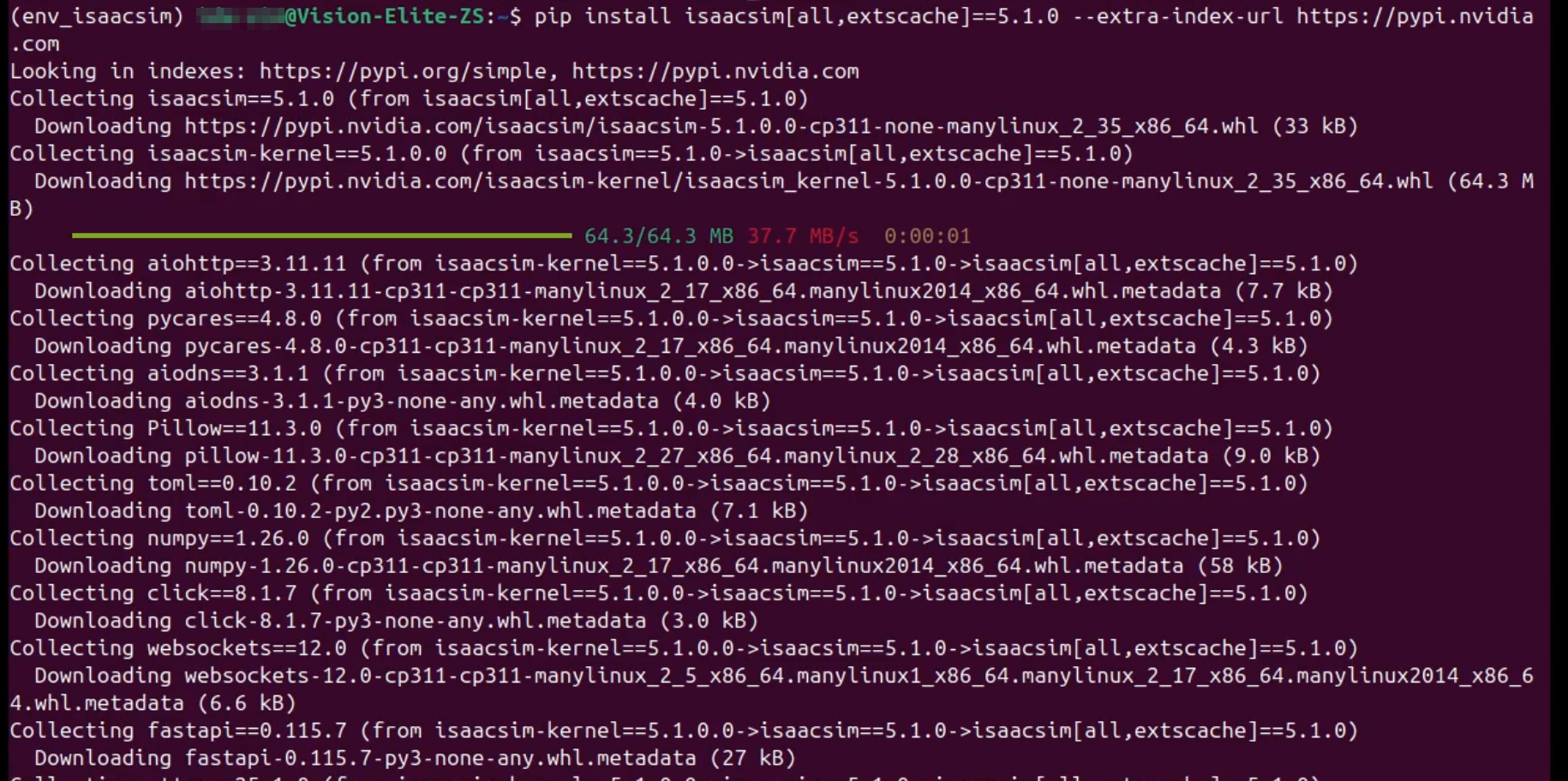
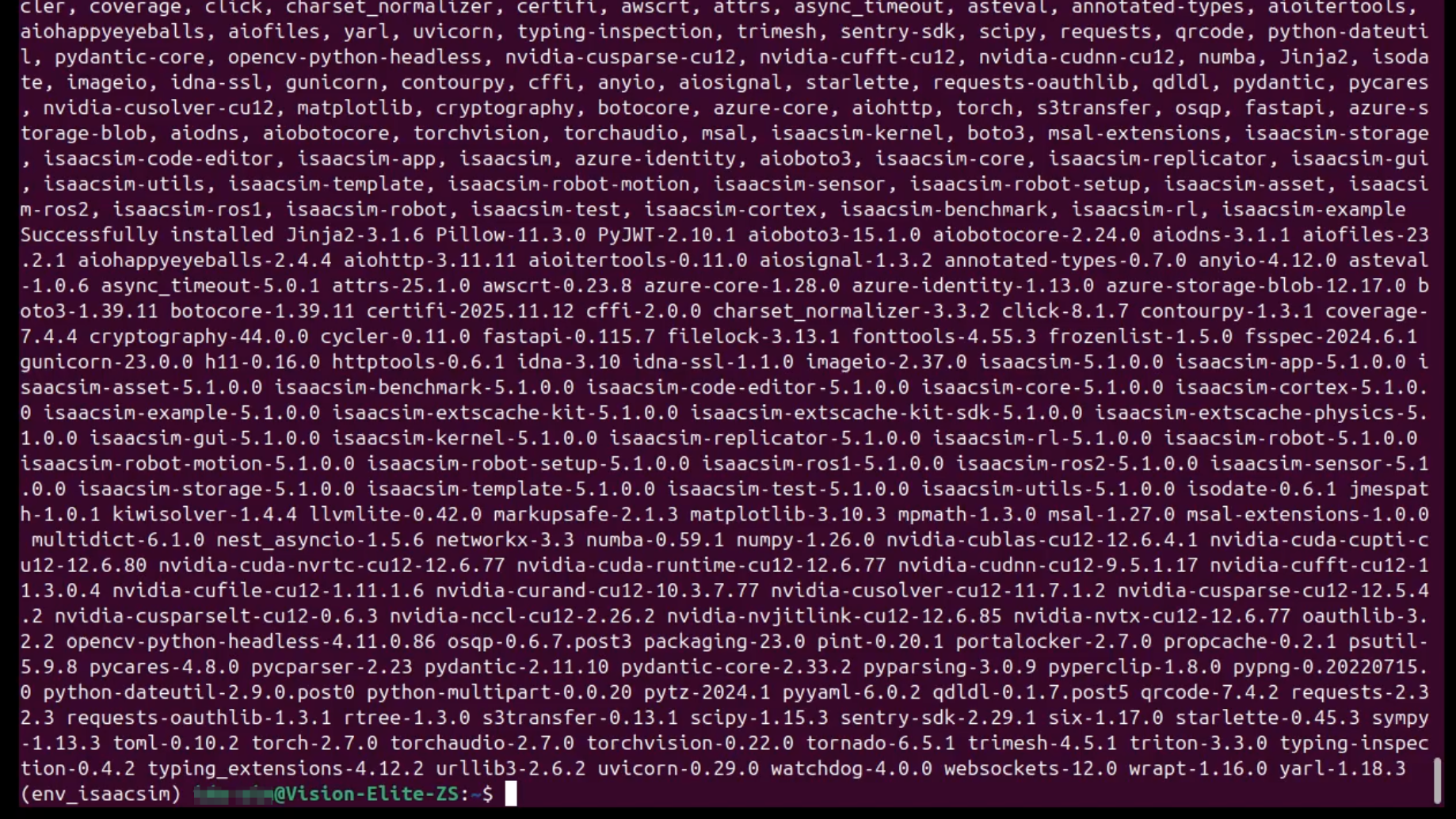
Install Isaac Sim within the created conda environment.
(env_isaacsim) $ pip install isaacsim[all,extscache]==5.1.0 --extra-index-url https://pypi.nvidia.com
3.4. Environment Verification
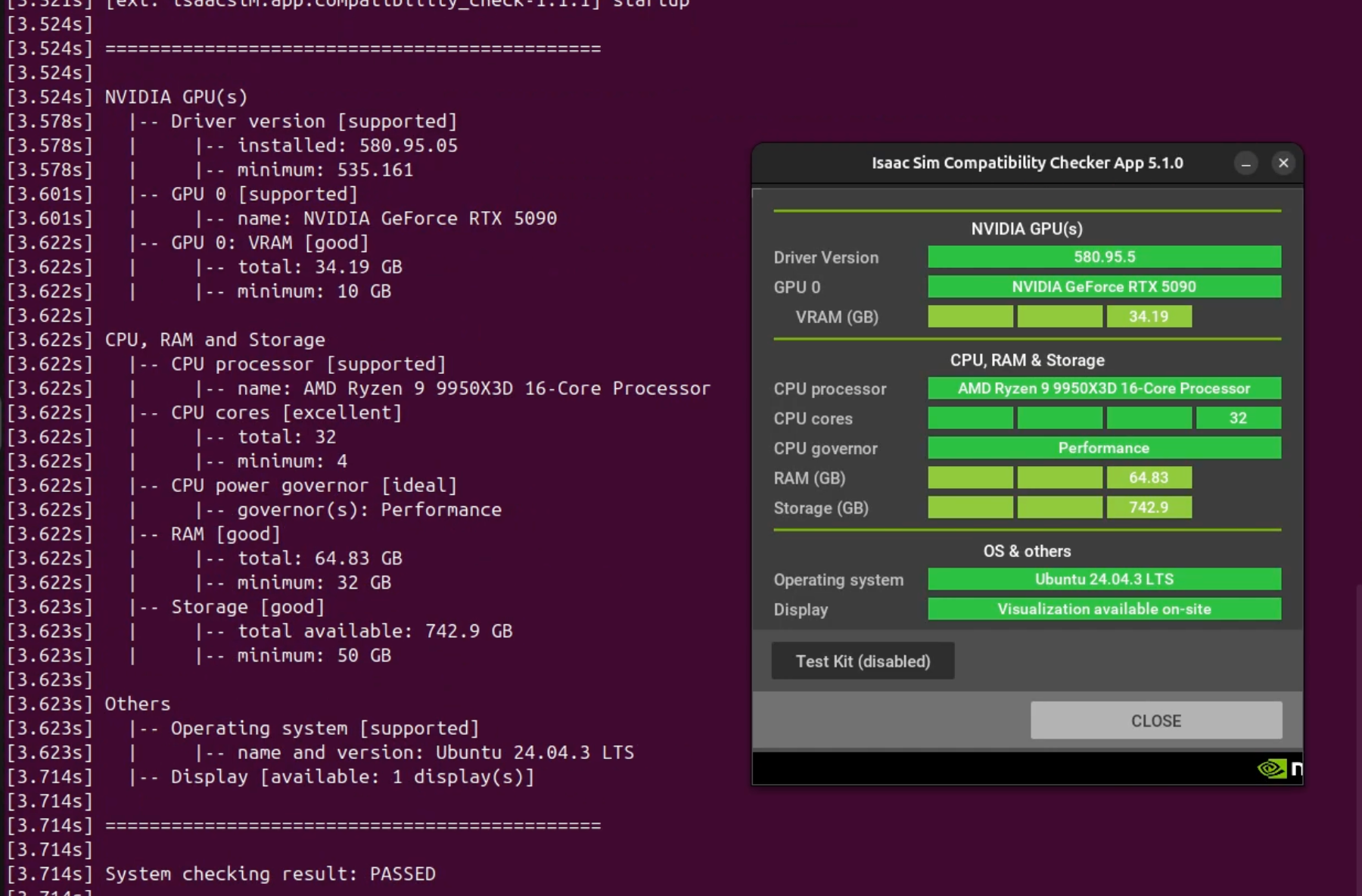
Run compatibility checks to verify that installation completed correctly.
(env_isaacsim) $ isaacsim isaacsim.exp.compatibility_check
3.5. Isaac Sim Startup
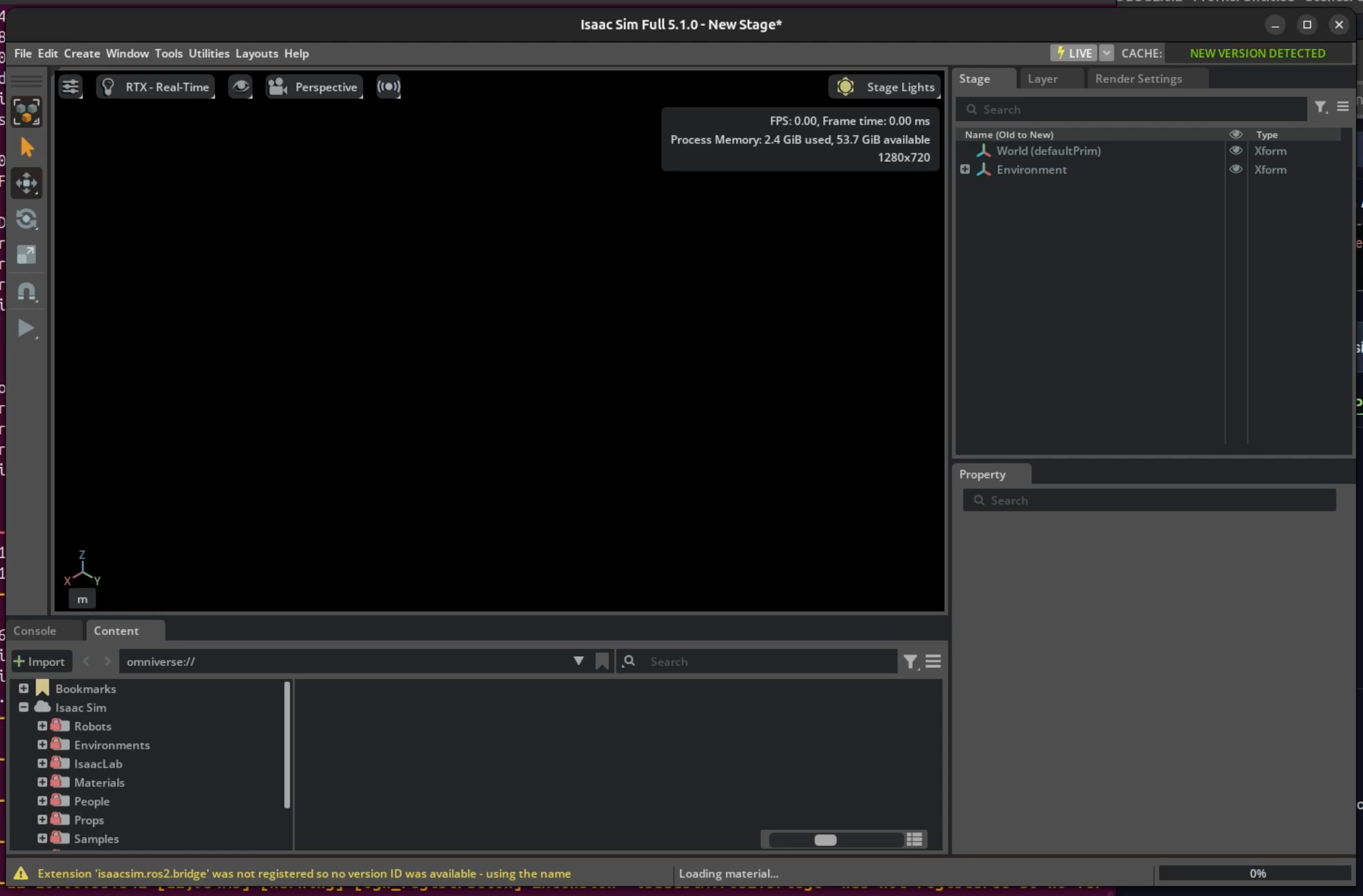
(env_isaacsim) $ isaacsim
3.6. ROS 2 Jazzy Installation
Refer to the official documentation (https://docs.ros.org/en/jazzy/Installation/Ubuntu-Install-Debs.html) to install ROS 2.
1. Locale Verification
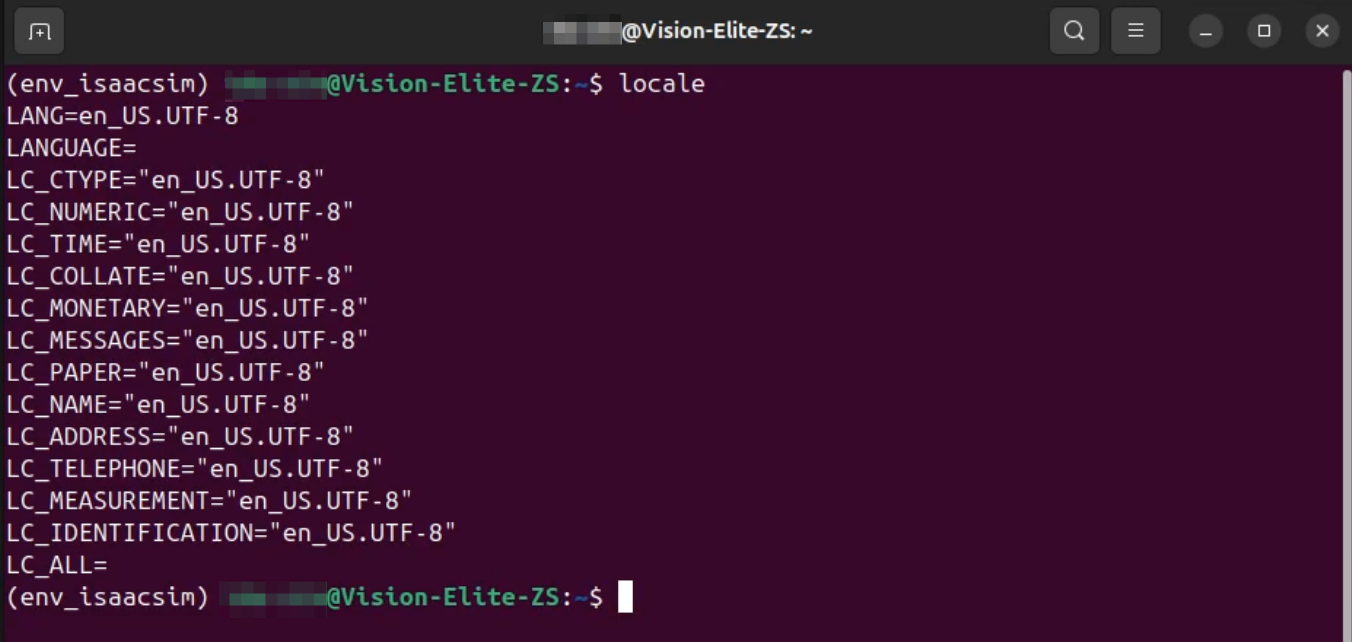
$ locale
Verify that en_US.UTF-8 is configured.
2. Repository Setup and Installation
Register the official repository for installing ROS2 Jazzy and proceed with actual package installation.
$ sudo apt install software-properties-common
$ sudo add-apt-repository universe
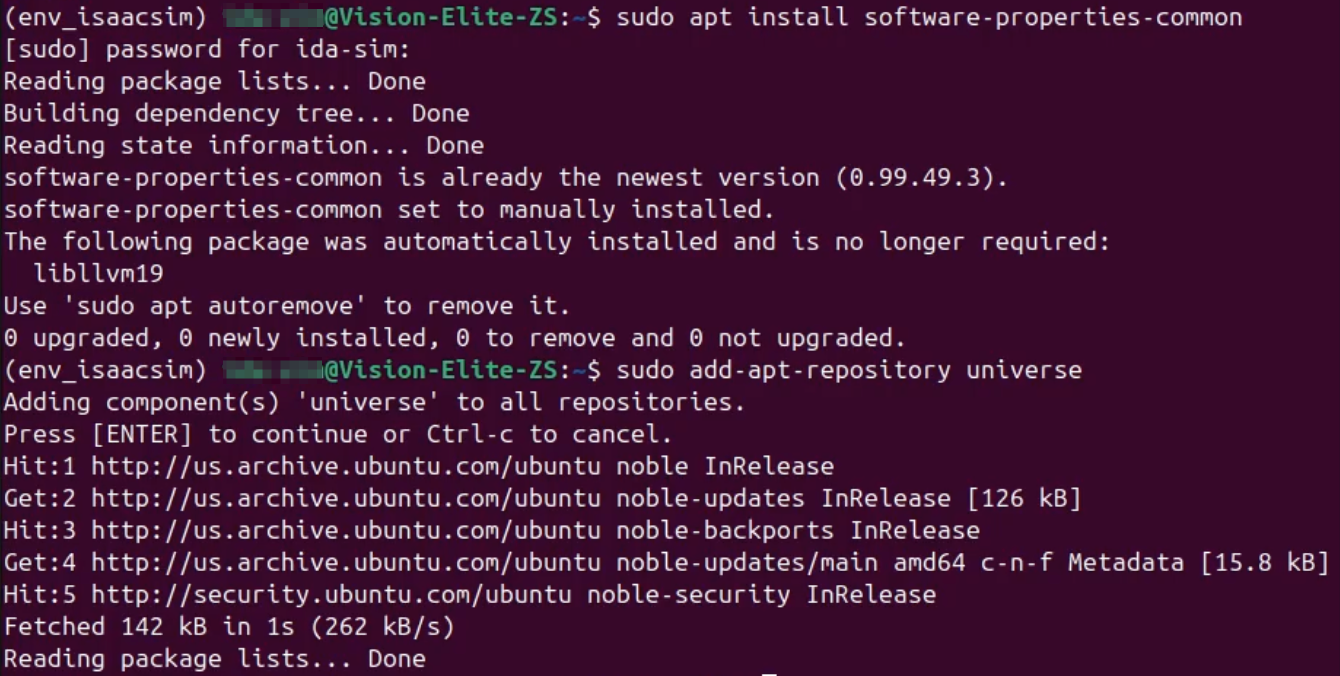
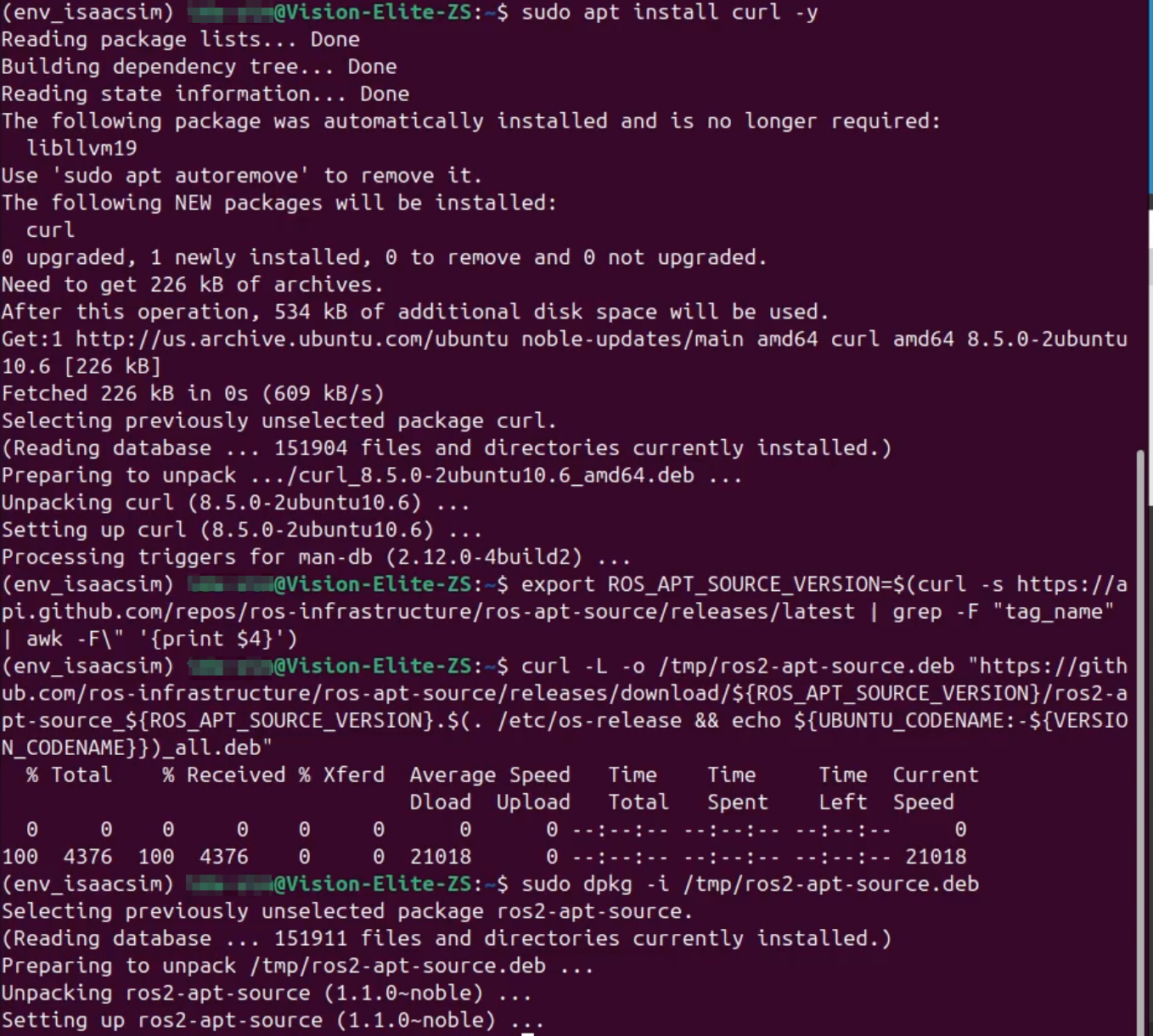
$ sudo apt update && sudo apt install curl -y
$ sudo curl -sSL https://raw.githubusercontent.com/ros/rosdistro/master/ros.key -o /usr/share/keyrings/ros-archive-keyring.gpg
$ echo "deb [arch=$(dpkg --print-architecture) signed-by=/usr/share/keyrings/ros-archive-keyring.gpg] http://packages.ros.org/ros2/ubuntu $(. /etc/os-release && echo $UBUNTU_CODENAME) main" | sudo tee /etc/apt/sources.list.d/ros2.list > /dev/null
$ sudo apt update && sudo apt install ros2-dev-tools
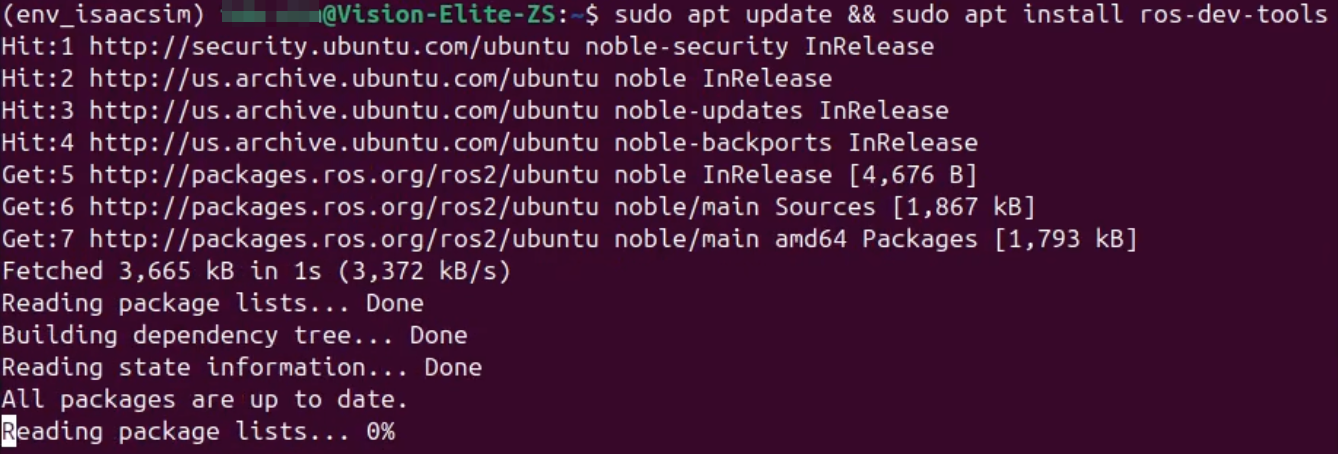
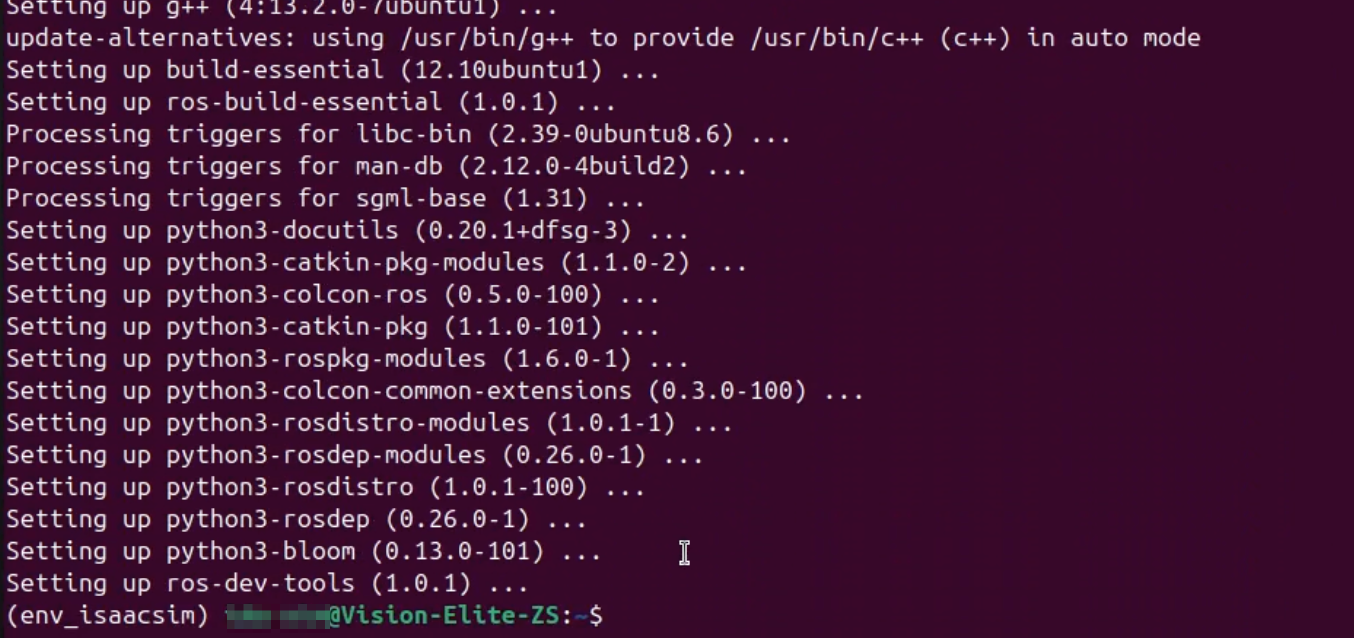
$ sudo apt update
$ sudo apt upgrade
$ sudo apt install ros-jazzy-desktop
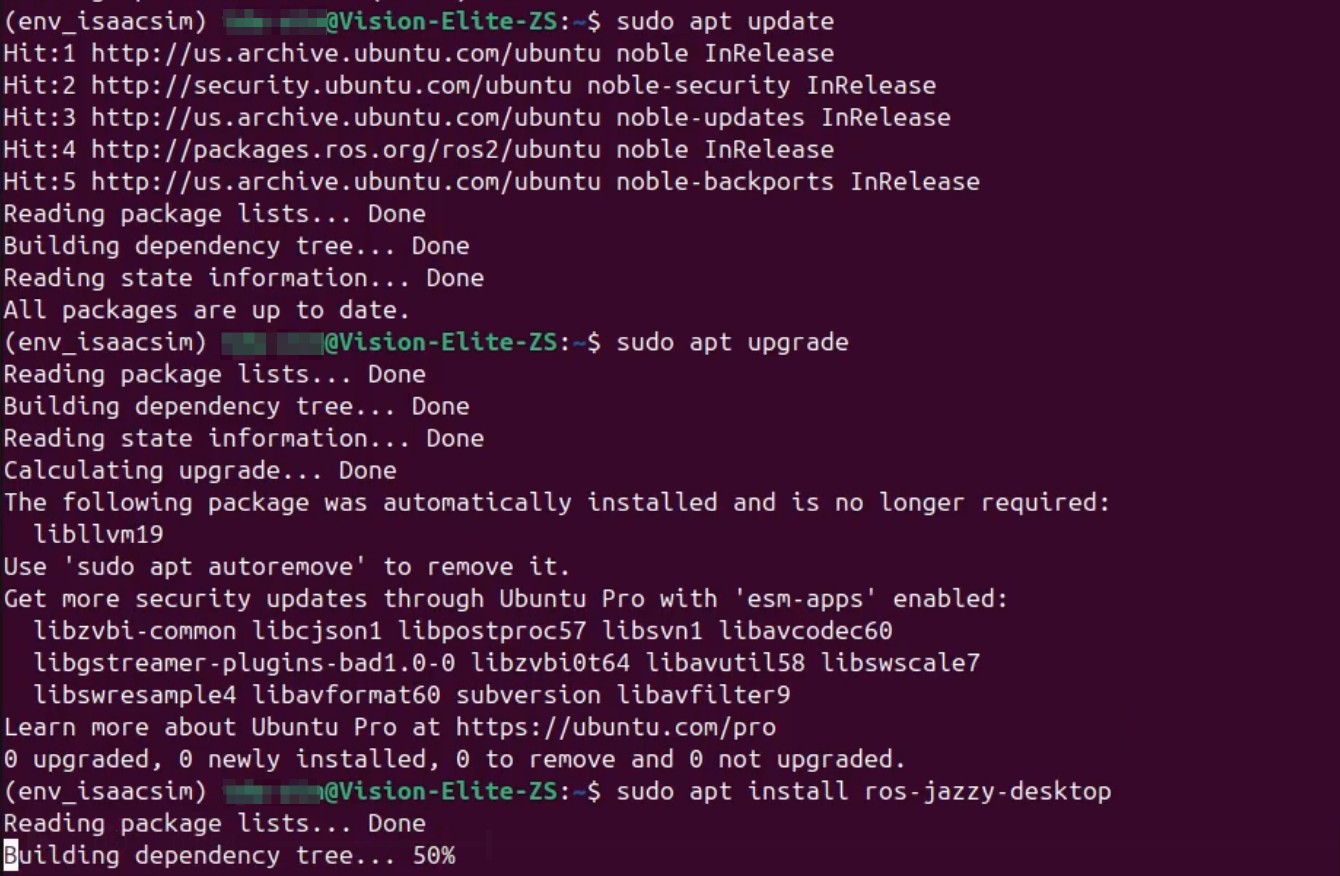
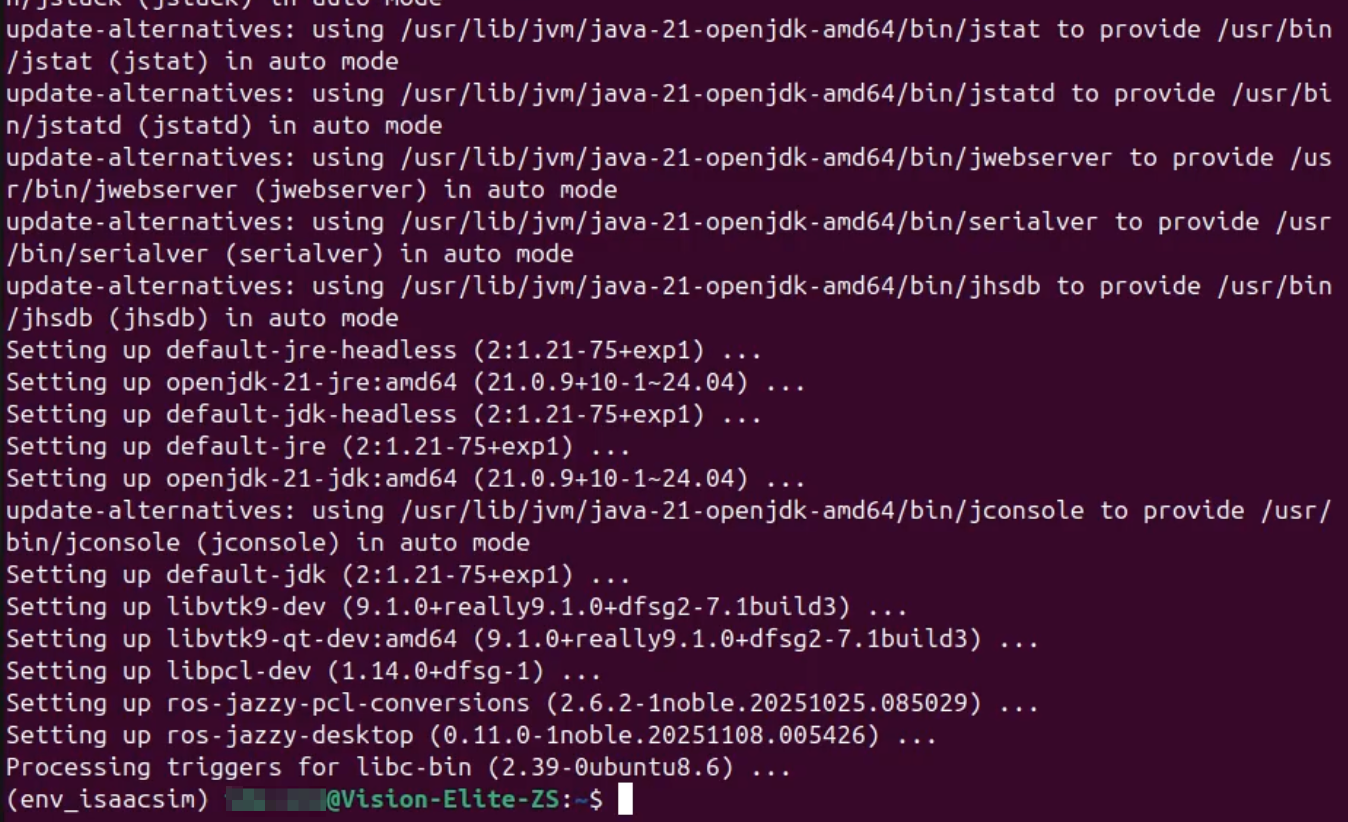
The final command installs ROS2 Jazzy's "desktop version" in one batch. This includes ROS basic functionality plus RViz (3D visualization tool) and demo packages—everything needed for GUI development.
3. Operation Verification
Open two terminals and launch Talker and Listener respectively to confirm message communication occurs.
# Terminal 1
$ source /opt/ros/jazzy/setup.bash
$ ros2 run demo_nodes_cpp talker
# Terminal 2
$ source /opt/ros/jazzy/setup.bash
$ ros2 run demo_nodes_py listener

3.7. Isaac Sim and ROS 2 Integration
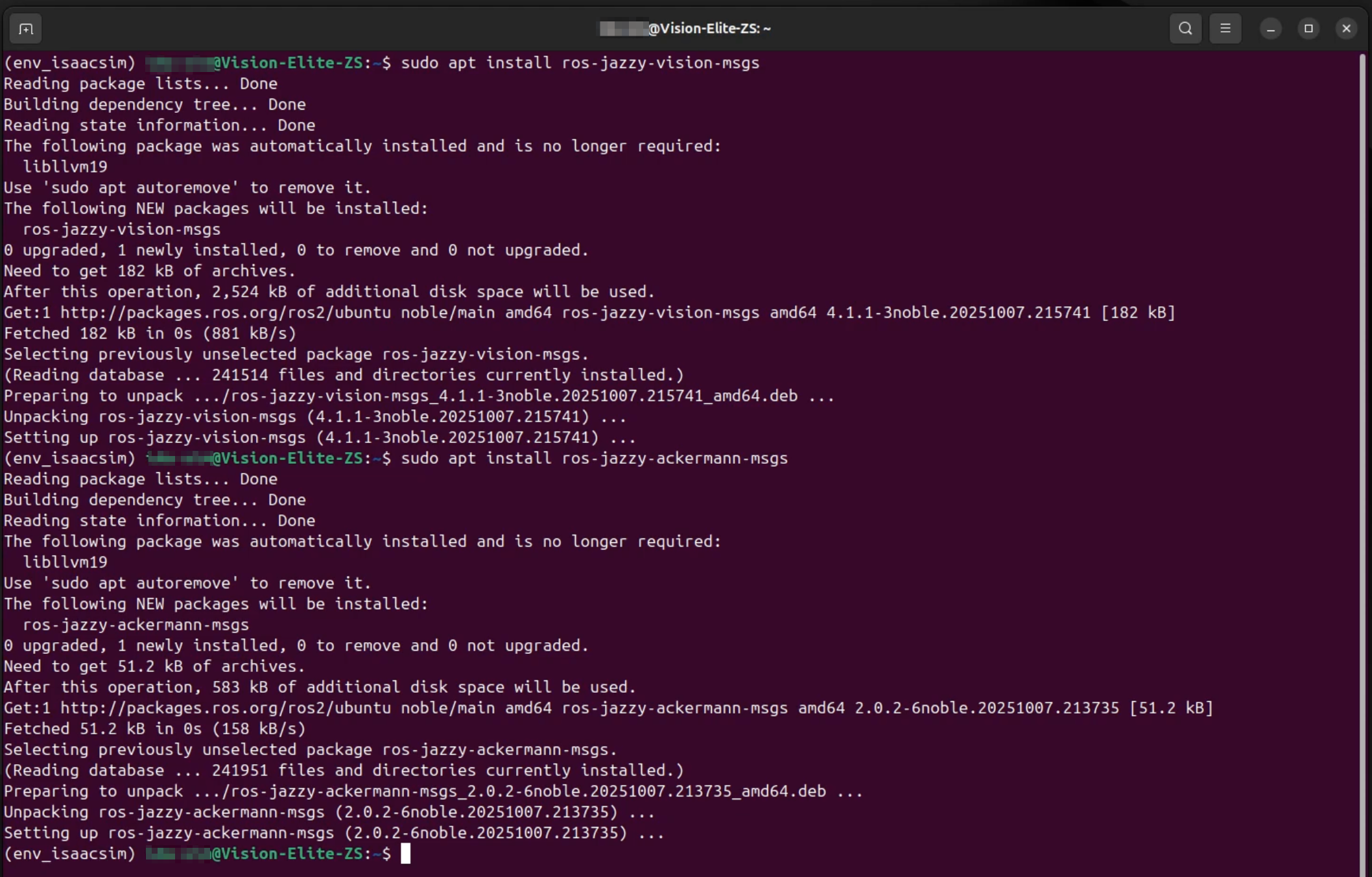
Install necessary ROS 2 packages for integration and launch Isaac Sim. I referenced (https://docs.isaacsim.omniverse.nvidia.com/5.1.0/installation/install_ros.html#install-ros-2).
$ sudo apt install ros-jazzy-vision-msgs
$ sudo apt install ros-jazzy-ackermann-msgs
# Load ROS 2 environment then launch Isaac Sim
$ source /opt/ros/jazzy/setup.bash
$ isaacsim
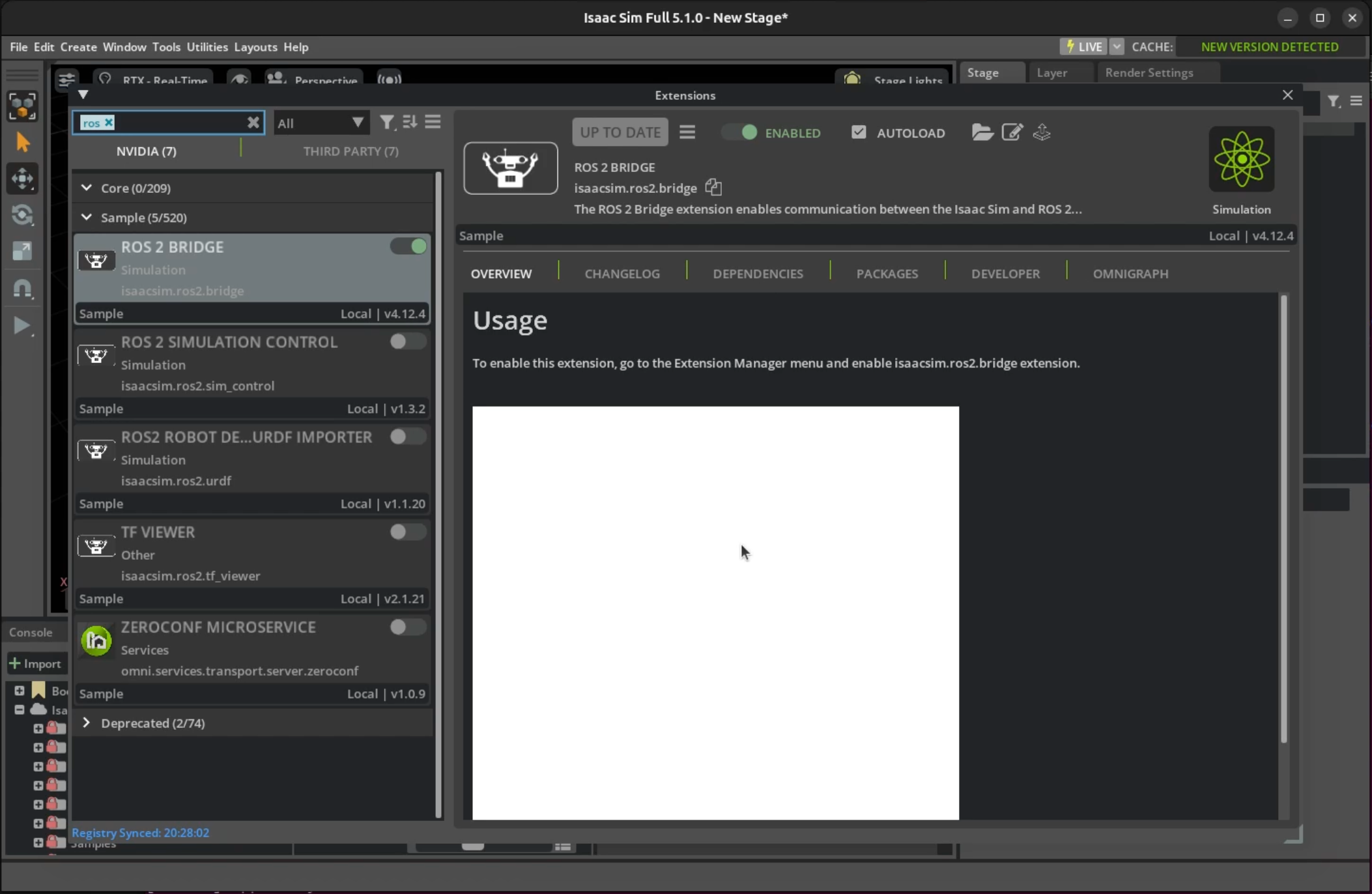
After Isaac Sim startup, confirm that ROS 2 Bridge is enabled in the Extensions window to complete the integration setup.
Considering Isaac Sim for Your Robotics PoC?
I help teams go from environment setup like this to a fully working Pick & Place PoC with your robot — TM Robot, custom arms, and more.
A 4-week fixed-price package ($15,000–$18,000) is available if you need a fast path to a working simulation. All you need is your CAD files (STEP/STL).
View Robotics Simulation Service Details →
4. Summary
This completes the procedure for reconstructing the NVIDIA Isaac Sim environment in a dual-boot Ubuntu environment.
The ROS2 and Isaac Sim bridge in Windows environment faced very complex and delicate DLL conflict issues that I continued to encounter, so rather than resolving each error one by one, I switched to Ubuntu. So far it's very stable, so I plan to continue development on the Ubuntu side for the time being.
Related Articles
- Isaac Sim Environment Setup: Windows 11 — The same setup on Windows 11 Pro with WSL2
- Controlling Robots in NVIDIA Isaac Sim from ROS 2 Jazzy — Next step: getting a robot arm moving in simulation
- Streaming Camera Feed from Isaac Sim to ROS 2 Jazzy — Adding vision to your simulation setup
- TM Robot + Isaac Sim Integration via ROS 2 — Connecting a physical TM Robot to simulation
- Adding Isaac Lab to an Existing Isaac Sim Environment — Next step: adding a reinforcement learning framework on top of this setup
- Rule-Based Automation vs. Physical AI — Which One Should You Choose? — Deciding which automation approach to validate in Isaac Sim