Bridging Reality and Simulation: Integrating TM Robot with Isaac Sim via ROS2
Hello! In this article, I'll share my journey of creating a "digital twin" environment that synchronizes a Techman Robot arm model within NVIDIA Isaac Sim in real-time.
The ultimate goals were:
- Operate the TM Robot in the simulation using the control software (TMFlow) installed on a separate machine, and reproduce its movements in Isaac Sim in real-time
- View the camera feed from Isaac Sim in a web browser
This article documents the entire construction process, the challenges encountered along the way, and their solutions.
⚠️ Security Notice: The IP addresses and port numbers used in this article are for illustration purposes. In production environments, implement appropriate security settings and open only the minimum necessary ports.
System Architecture
The overall system architecture is as follows:
┌─────────────────┐         ┌──────────────────┐         ┌─────────────────┐
│   Windows PC    │         │   Ubuntu PC      │         │  Isaac Sim      │
│     TMFlow      │ ◄─────► │   ROS2 Jazzy     │ ◄─────► │  Visualization  │
│   Version 2.20  │   TCP   │   w/ tm_driver   │  Topics │   + Camera      │
└─────────────────┘         └──────────────────┘         └─────────────────┘
                                     │                            │
                                     └────────────────────────────┘
                                              HTTP MJPEG
                                         http://PC_IP:5000
                                                 │
                                                 ▼
                                    ┌────────────────────────┐
                                    │  Web Browser (TMFlow)  │
                                    │  View Camera Feed      │
                                    └────────────────────────┘
The data flow works as follows:
- TMFlow installed on the Windows PC acts as the robot's brain, publishing its own state including joint angles.
- The ROS2 node (tm_driver) on the Ubuntu PC references this information and publishes it as ROS2 topics.
- Isaac Sim references these ROS2 topics to move the robot model in the simulation.
- The camera feed from Isaac Sim is converted to a web stream by another ROS2 node.
- Access the stream from TMFlow or web browsers on other PCs to view the digital twin's perspective.
Step 1: TM Robot Configuration
First, configure TMFlow to communicate with external systems (ROS2).
1. Network Configuration
Ensure that the TM Robot and Ubuntu PC are on the same network. In my environment, I used port 5890, so I opened it in the firewall.
2. TMflow Data Table Preparation
Configure the dataset to be published by TMflow.
-
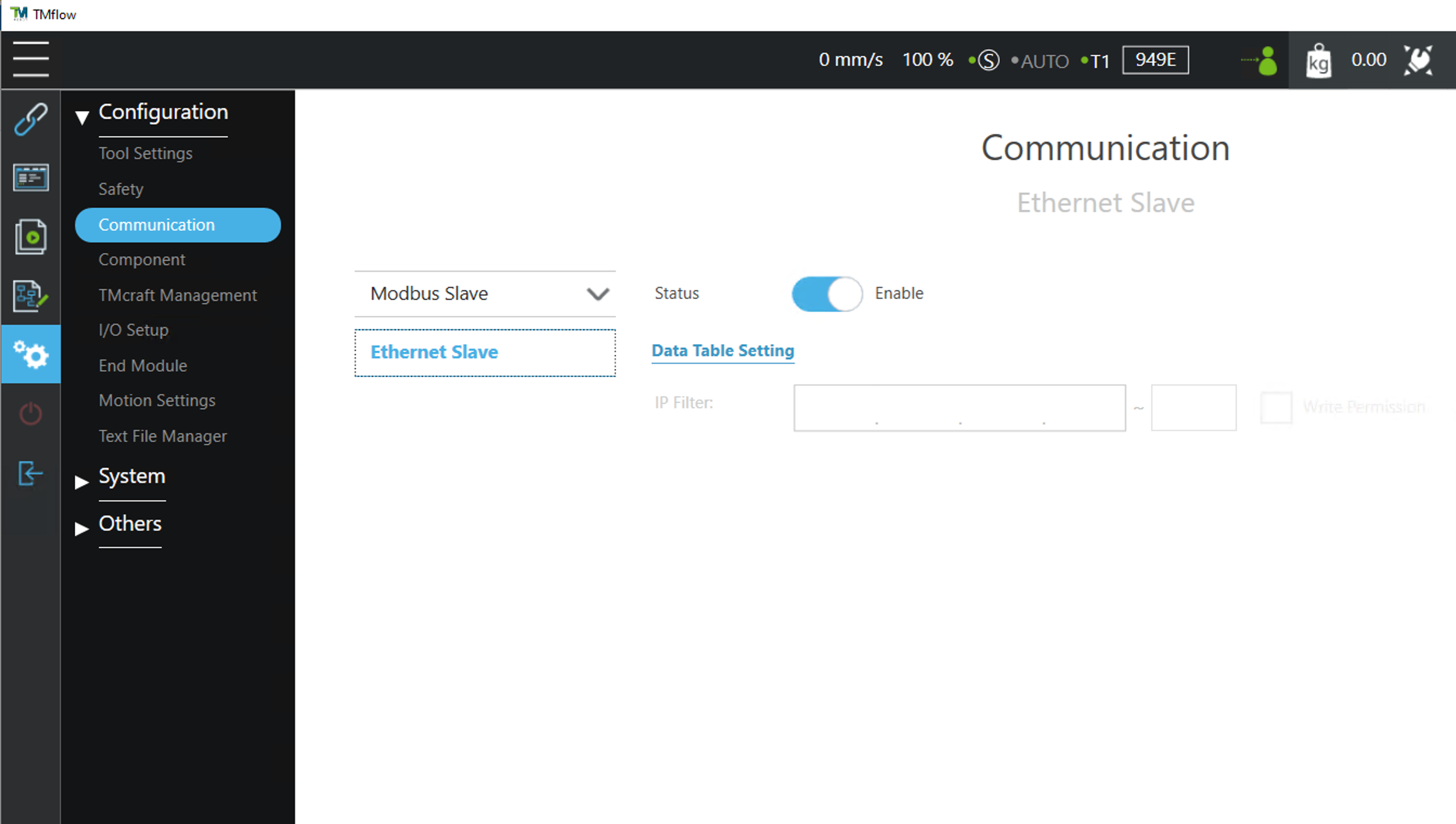
Open your project in TMflow and navigate to Settings → Configuration → Communication.
-
First, disable Ethernet Slave. You cannot edit the next items without disabling it.
-
Click Data Table Setting and add necessary data items such as joint angles, velocities, TCP coordinates, and error states to the right column. Basically, you can select all of them.

-
Save the settings and enable Ethernet Slave again.
Step 2: ROS2 Driver Configuration and Modifications
Next, set up the driver to control the TM Robot with ROS2 on the Ubuntu PC side.
Issue: Incompatibility between TMflow 2.20 and tm_driver
The official tm_driver requires certain data items (MA_Mode, Safeguard_A) that the newer version of TMflow (2.20) doesn't send, causing startup errors.
Solution: Modify the Driver Source Code
Resolve this issue by changing these items from required (REQUIRE) to optional (NOT_REQUIRE).
Modified File 1: tm_driver/src/tm_robot_state.cpp
// Line 42: Change Safeguard_A to optional
_item_map["Safeguard_A"] = { &rs->tmRobotStateDataFromEthernet.is_safeguard_A_triggered, Item::NOT_REQUIRE};

// Line 59: Change MA_Mode to optional
_item_map["MA_Mode"] = { &rs->tmRobotStateDataFromEthernet.ma_mode, Item::NOT_REQUIRE };
Modified File 2: tm_driver/src/tm_packet.cpp (Adjusting warning messages)
// Line 207: Change frequent warnings to debug messages
print_debug("package length not valid...");
After modifications, rebuild the workspace with colcon build.
Launching the Driver
Once the build is complete, launch the driver with the following command:
ros2 launch tm_driver tm_bringup.launch.py robot_ip:=<TMFlow IP Address>
If you see data table is correct! in the console, the connection is successful.
Step 3: Robot Mirroring in Isaac Sim
Now it's time to reproduce the real robot's movements in Isaac Sim. We'll set up an Action Graph to receive data from ROS2. This is a minimal configuration to receive data and apply it to the robot model.
Required Nodes to Move the Arm
- On Playback Tick
- ROS2 Subscribe Joint State
- Topic is
/joint_states
- Topic is
- Articulation Controller
- Set Target Prim to point to your robot. In my case, it was
/World/tm5s.
- Set Target Prim to point to your robot. In my case, it was
Issue: Robot Shaking/Jittering
Initially, I was troubled by the robot in Isaac Sim shaking in small increments. The cause was two nodes simultaneously writing data to the /joint_states topic.
- tm_driver: Publishes high-precision joint angles from the real robot
- Isaac Sim: Publishes low-precision joint angles from the simulator
These two conflicted, causing the robot to shake.
Solution: Disable Publishing from Isaac Sim
Isaac Sim should only receive (Subscribe) the real robot's movements.
- In Isaac Sim, open [Window] → [Visual Scripting] → [Action Graph].
- Delete or disable the "ROS2 Publish Joint State" node.
- Keep the "ROS2 Subscribe Joint State" node.
This makes the data flow unidirectional, stabilizing the robot's movements.
Step 4: Web Streaming of Isaac Sim Camera Feed
Finally, let's make the view from Isaac Sim accessible via a web browser.
Issue: TMflow Cannot Display ROS2 Topics Directly
Isaac Sim publishes camera feed as a ROS2 topic (/camera/image_raw), but TMflow's web browser functionality cannot display it directly.
Solution: Convert ROS2 Topic to HTTP MJPEG Stream
I created a Python script that subscribes to the ROS2 camera topic and uses a web framework (Flask) to distribute it as an MJPEG stream over HTTP.
Architecture:
Isaac Sim Camera (/camera/image_raw)
    ↓ (ROS2 Topic)
Python Script (image conversion with cv_bridge)
    ↓ (Web server with Flask)
HTTP MJPEG Stream (http://PC_IP:5000)
    ↓
Display in Web Browser
By launching this script, any device on the network can access http://<Ubuntu PC IP>:5000 to view the live feed from Isaac Sim.
Overall Workflow
For this project, I launched three terminals:
- Terminal 1: TM Robot Driver
ros2 launch tm_driver tm_bringup.launch.py robot_ip:=<TMFlow IP Address> - Terminal 2: Joint State Monitoring
ros2 topic echo /joint_states - Terminal 3: Camera Web Streaming
./stream_isaac_camera.sh
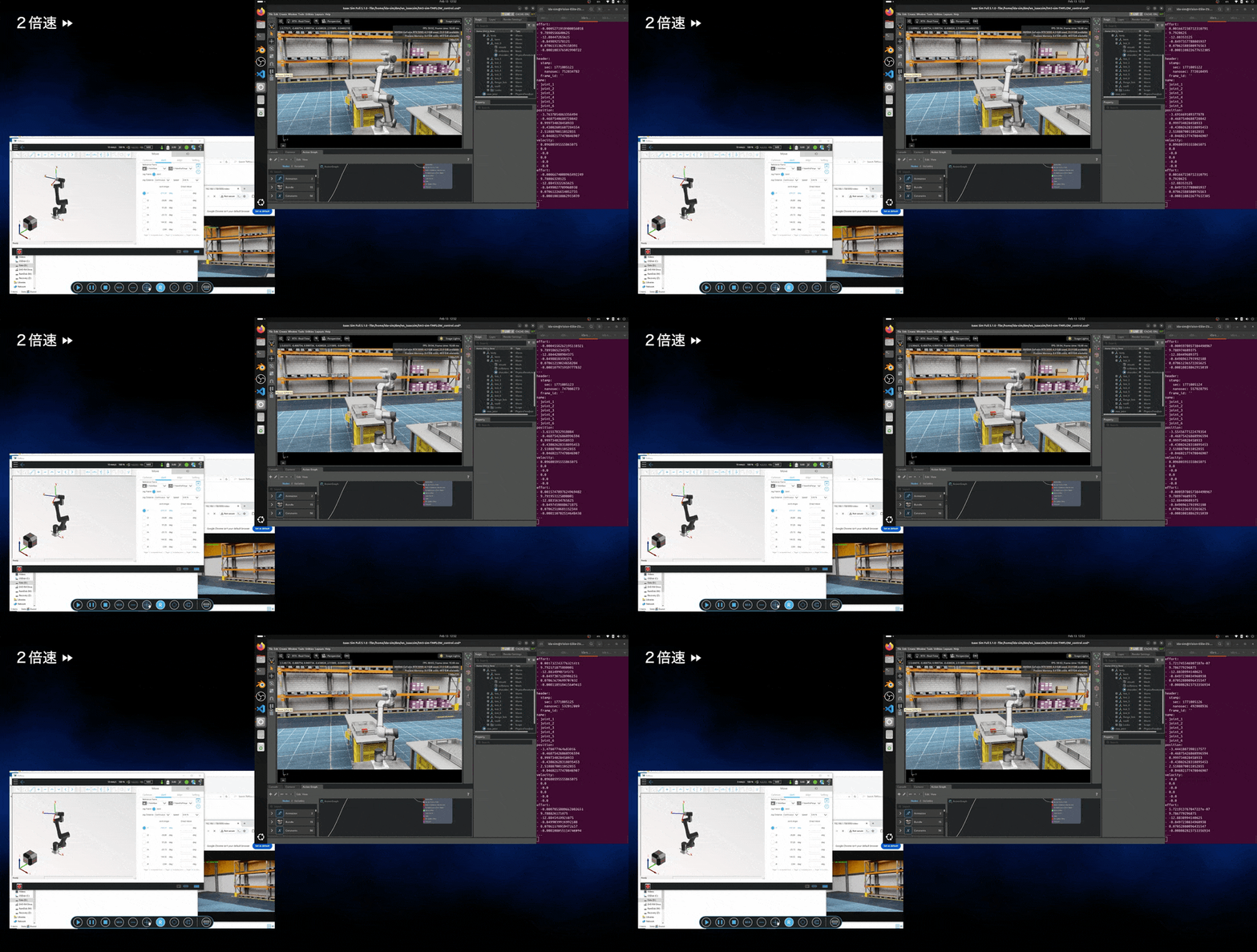
Now, when you move the robot in TMflow, the robot in Isaac Sim follows in real-time, and you can view it from anywhere via a web browser.
Troubleshooting Tips
- Driver won't connect: Check if TMflow's Listen node is running and Ethernet Slave is enabled.
- Robot is shaking: Disable the
ROS2 Publish Joint Statenode in Isaac Sim's Action Graph. - Cannot access camera stream: Check if your firewall is blocking port
5000. (sudo ufw allow 5000/tcp)
Summary and Future Prospects
This integration enables remote monitoring of physical robots, pre-validation in simulation, and camera-based application development, all while maintaining TMflow's native operational feel.
As expected with robust PhysX, when the arm hits an obstacle in Isaac Sim, it reacts accordingly with collision behavior.
Moving forward, I plan to explore:
- Bidirectional communication to control the robot from Isaac Sim
- Advanced path planning with MoveIt integration
- Support for multiple camera angles
I hope this article helps those who are also working on bridging reality and simulation.